Prepare your script and a short test
Open the free teleprompter editor, paste your words and give the script a name. For a first test, use a paragraph of about 30 words. Read it aloud before adjusting the reader. Short lines and paragraph breaks can make it easier to find your place after a pause.
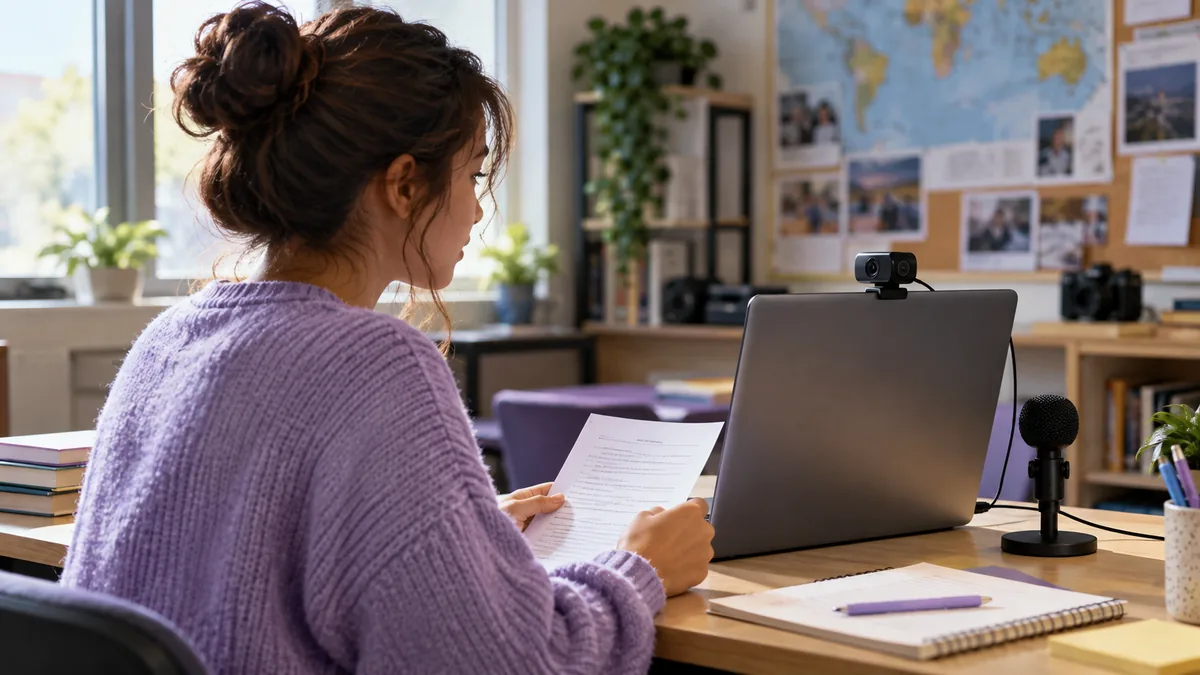
Select Start teleprompter. Set the text size, side margins and target pace from your filming position. Put your webcam near eye level and the active reading area close to its lens. The pace setting estimates scrolling speed; it does not follow your voice.
If you are planning a YouTube recording with more than one shot, use the YouTube script and camera setup guide before the full take.
Enable the camera and microphone
In the reader, choose Record video → Enable camera. Before enabling, choose the camera-facing option you want and leave Record microphone selected if you need speech. Allow the permissions requested by your browser. Check the preview and framing before choosing Start recording.
Camera access requires a secure context, normally HTTPS on the live website, and the user’s permission. Browsers may request camera and microphone access separately. These are browser requirements, described in MDN’s camera-access documentation.
If the preview does not open, follow the camera access troubleshooting guide. Match the status message to the problem before changing settings. Another app using the camera, a blocked permission or a missing microphone can require different fixes.
- Start teleprompterArrange the words near your lens.
- Enable cameraCheck permissions and preview.
- Start recordingRead, pause or stop the take.
- Download the videoOpen the saved file and check sound.
Record, pause and finish the take
Choose Start recording when your framing is ready. The camera panel closes, the script starts and the recording bar shows the video state and elapsed time. Confirm that it says Recording; an open preview is not a saved take.
Use Pause video to pause capture and the script together. Choose Resume video to continue. Use Stop recording to finish, then wait for the video to appear in the review panel.
The script’s own Play/Pause control changes scrolling only. Use the recording bar to pause the video. Any script countdown happens after capture starts, so it is included in your take. The scrolling script and reader controls are not included in the camera video.
Keep the page in the foreground while recording. Making it inactive stops capture and asks you to review the captured part. For a fresh attempt, finish and download anything you want to keep before choosing another take.
A take stops at 15 minutes or 200 MB, whichever is reached first. The duration you can record therefore depends on the data produced by your camera and browser. Use shorter sections for a long presentation and save each one before continuing.
Download and check the actual video file
Play the take in the review panel, then use its download link. The label reflects the format produced by your browser, such as Download MP4 or Download WEBM. The tool prefers a supported MP4 recording type and falls back to supported alternatives. It does not convert a WebM recording into MP4.
Format support varies by browser and device. A browser’s supported-type check also does not guarantee a recording will succeed if resources are unavailable, as MDN’s MediaRecorder documentation explains. Test the file in the player or editing app you intend to use.
Keep the tab open until the browser has finished saving. Find the file in your browser’s downloads, open it outside this page and check the beginning, ending, picture and voice. A clicked download link alone does not prove that the file arrived. If you recorded without the microphone option, do not expect a voice track.
Know what stays in the browser
No account or installation is required to use this browser tool. Scripts use local browser storage when it is available; export a TXT backup if you need a durable copy. Browser storage can be cleared and is specific to the browser you used.
The recorder keeps the current take in memory until you download it or discard it. It does not upload your script or recording. Reloading, closing the page or discarding an unsaved take can lose that video. The website still makes ordinary requests to serve its pages and uses the analytics described in the privacy notice.
Run this acceptance check before the full script
- Record about 15 seconds with one spoken sentence, a pause and a final sentence.
- Pause and resume once if you plan to use that control.
- Stop, download and play the file outside the browser tool.
- Confirm audible speech, usable framing and the expected file type.
- Only then record the full section, keeping the tab active.
The team has tested the recorder controller and a native desktop MediaRecorder flow using a synthetic canvas stream. That checks recording plumbing, not a physical camera or microphone. Physical Safari/iPhone camera, audio and download acceptance remains pending. This guide is not a claim of verification on every browser or device.
Need the entire script, camera and trim/crop workflow on an iPhone? See Teleprompter Pal’s iPhone workflow. Pal is a separate private beta made by the same team. For a browser take now, open the editor and prepare your test paragraph.