




The short answer
- Choose Text size from your actual reading position, then use Margins to shorten lines if needed.
- Compare the same passage while changing one control at a time. The example settings show what to compare, not an ideal size for every screen.
Text that looks generous beside the keyboard can become difficult to read when you step back to deliver a talk. Set the layout from that position. Judge letter size and line width separately before trying to solve the problem by changing the scrolling pace.
Start from the position you will use
Put the screen where it will stay during the talk or recording. Sit or stand at your intended distance, with the window at the size you will actually use. Read from there rather than leaning over the keyboard to judge the layout. Keep the lighting and screen brightness representative of the session.
A font number is a starting setting, not a distance recommendation. Free uses CSS pixels, which are not necessarily physical device pixels, as MDN explains. A value copied from another app or screen does not establish that you can read this setup comfortably.
Adjust text size and width separately
In Reader settings, use Text size for the letters and Side margins for the reading column. The margin value applies on each side. Choose Preview without scrolling to judge the layout while the words stay still. Inside the reader, the same controls are labeled Text size and Margins.
Free starts at 58 px with 8% margins in a fresh setup. Those are defaults, not a recommended size for everyone. Increase the text until you can read from your chosen position without moving closer. Then adjust the margins if the lines require too much sideways scanning. Larger letters also change where lines wrap, so keep the passage unchanged while comparing.
Compare the same passage
Use a few sentences with a mix of short and long words. This sample is enough to expose a layout change without requiring a full rehearsal:
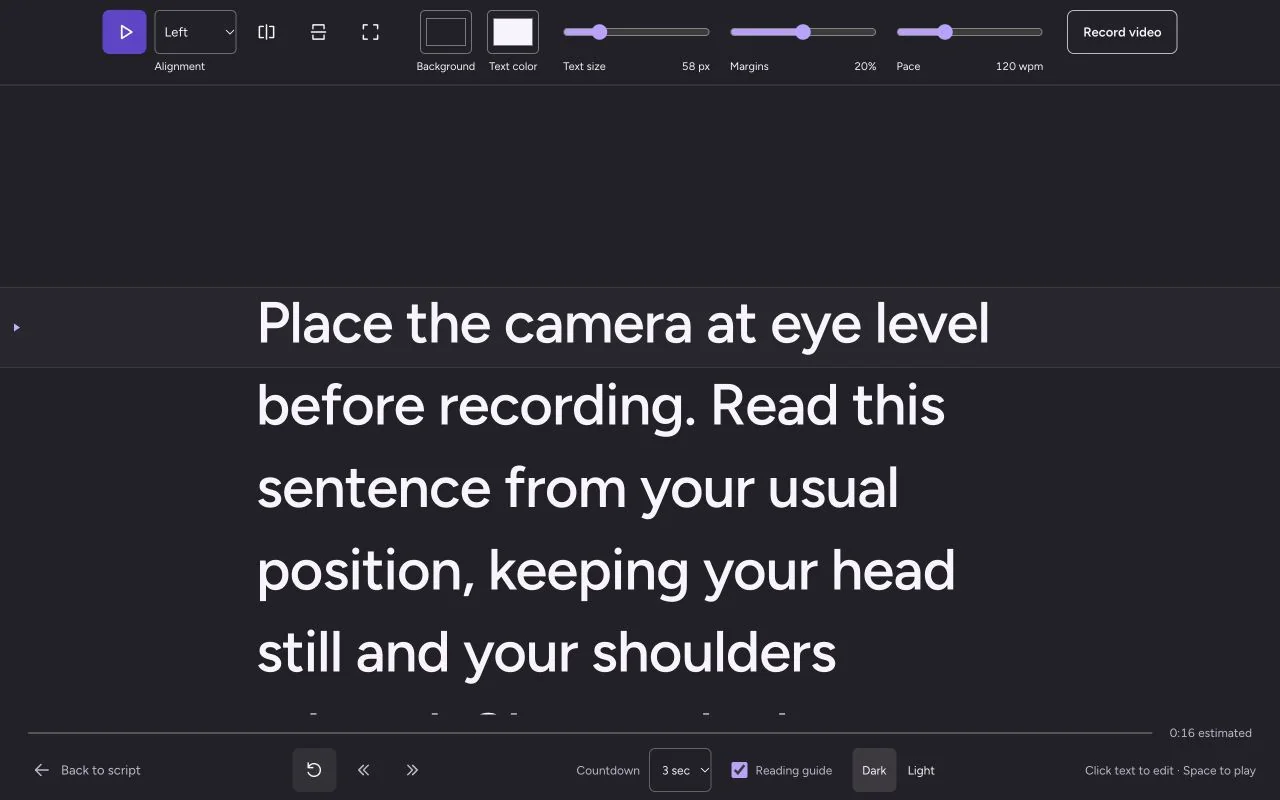
Place the camera at eye level before recording. Read this sentence from your usual position, keeping your head still and your shoulders relaxed. Change the layout, then read these same words again.
Make one change, read the passage aloud, and note what became easier or harder. If recording video, save a short test and inspect the result. Do not infer eye contact from the reader preview alone.
| Comparison | Text size | Margins | Question to answer |
|---|---|---|---|
| Starting layout | 58 px | 8% each side | Can I read without leaning forward? |
| Larger letters only | 76 px | 8% each side | Do larger letters help, or leave too little text ahead? |
| Narrower column only | 58 px | 20% each side | Can I follow the shorter lines without awkward breaks? |
These values define a comparison, not a prescription. Return to the starting layout before testing the narrower column, so you can tell which control caused the change. Use smaller adjustments around the setting that works for you.
In our local browser comparison at a fixed 1280 × 800 viewport, this sample wrapped into five lines at 58 px/8%, seven at 76 px/8%, and eight at 58 px/20%. That confirms a layout difference, not which version a person can read most comfortably.
Keep the adjustment that solves the problem
| What you notice | Next comparison |
|---|---|
| You move closer to make out the words. | Increase Text size while keeping the screen position and margins fixed. |
| The words are clear, but your gaze travels across long lines. | Increase Margins, then check the same passage and your recorded sample. |
| Lines become fragments and the next thought is hard to see. | Widen the column slightly or reduce an unnecessarily large size. Check readability again. |
| A word is cut off by reflective glass or its frame. | Check the mirror teleprompter fit from the actual reading position. |
A narrower column cannot put the text in the lens. For a camera take, place the reader near the camera and use the short camera-test workflow to check the whole arrangement.
Record the layout, then set the pace
Keep a short setup note: screen and window size, reading position, Text size, Margins, and what you observed. For example: “Laptop at desk, window maximized, usual chair position; size ___ px; margins ___%; readable without leaning; next sentence remains visible.” Fill in your own observations rather than adopting the comparison values.
Now turn on scrolling and rehearse the same passage at your delivery pace. Recheck when you change screens, resize the window or move farther away. A comfortable static layout is only the first part of a usable reading session.
Try the same-passage text-size check in the browser teleprompter before loading the full script.
Free Teleprompter Online and Teleprompter Pal are made by the same team. Read how our guides are prepared and checked, or send a correction.