



The short answer
- In Free’s browser reader, focus Play/Pause: Space pauses or resumes, Left Arrow jumps back and pauses, and Home returns to the beginning paused.
- Up/Down change Pace by 5 WPM. Left/Right move by five seconds of scroll distance, not five seconds of recorded media.
- Space and arrow keys keep their typing behavior in text fields. Reader shortcuts do not replace the camera recording controls.
Free’s browser teleprompter keyboard shortcuts work in the reader: focus Play/Pause, then use Space to stop or resume the text. If Space inserts a blank instead, you are editing the script. Move focus back to Play/Pause before trying it again.
Put keyboard focus on Play/Pause
Paste or import your script, then choose Start teleprompter. The shortcuts below work in the reading view, not as commands to open it from the homepage.
Bring that browser window to the front. Use Tab until the Play or Pause button has the focus outline, then press Space. If you have switched to your slides, meeting window or another tab, return to the reader first. These are page controls, not system-wide hotkeys.
Use Free’s reading controls
| Key | What it does | What to expect |
|---|---|---|
| Space | Pause or resume the scrolling script. | Use it with Play/Pause focused. During the opening countdown, it cancels that countdown. |
| Up Arrow / Down Arrow | Increase / decrease Pace by 5 WPM. | Watch the displayed Pace value; this changes the reading speed, not the text size. |
| Left Arrow / Right Arrow | Move back / forward by five seconds of scroll distance. | Either jump pauses the reader. Press Space when you are ready to continue. |
| Home | Return to the beginning and pause. | It does not immediately start another run. |
The five-second jump uses the current Pace and measured text layout. It is a movement through the script, not a replay of five seconds of recorded speech. Change text size or margins and the visible lines can differ. Use the same-passage text-size check before settling on your reading layout.
If your keyboard has no convenient Home key, use the reader’s Restart and pause button. Use the named on-screen controls for mirroring and fullscreen too; shortcuts listed for another teleprompter are not necessarily Free’s shortcuts.
When Space types a blank instead
While the reader is paused, clicking its words opens text editing. Space then inserts spaces, and the arrow keys move through the text instead of running the reader’s shortcuts. That protects an ordinary typing action from starting playback.
Finish the correction, then use Tab to move focus back to Play/Pause before pressing Space. If a settings field has focus, move out of it as well. Space on another focused button may activate that button, so check the outline rather than pressing repeatedly.
Rehearse a pause and return
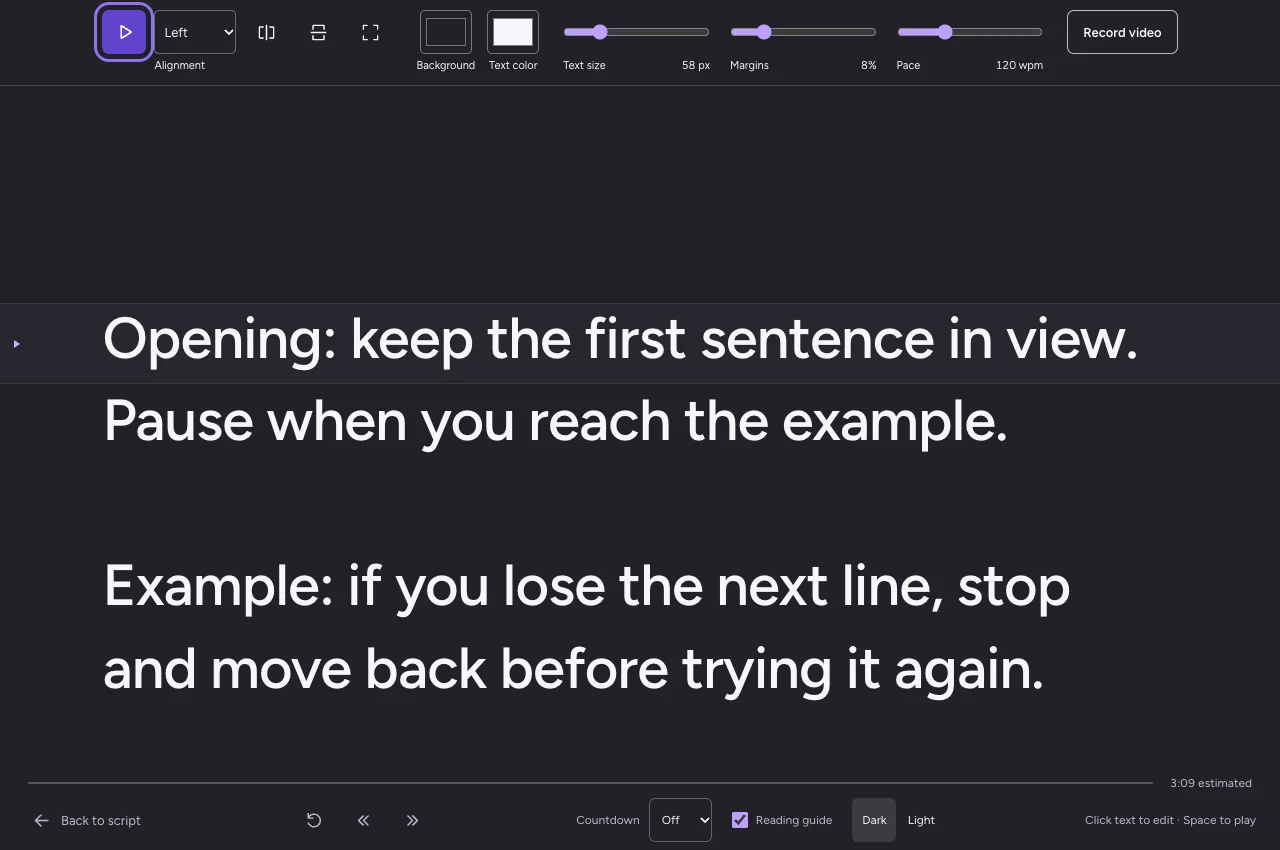
Try the controls with practice words before an important passage. This example is short enough to recognize where you are after a jump:
Opening: keep the first sentence in view.
Pause when you reach the example.

Example: if you lose the next line, stop and move back
before trying it again.

Closing: return to the beginning for another rehearsal.
- Start the reader and focus Play/Pause. Press Space to pause, then again to resume.
- Use Left Arrow once. Confirm that the text moves back and stays paused. If you are already near the beginning, the movement can be small.
- Press Space to continue. Use Home when you want a fresh run, then start it deliberately.
For a talk, practise the return after a question as well as the opening. The presentation interruption rehearsal explains that transition. On a call, use the Zoom private-notes setup and check the audience’s sharing preview separately.
Keep scrolling separate from recording
These shortcuts control the reading text. Pausing it or jumping back is not an instruction to pause, trim or rewind a camera take. Use the recording controls described in the browser camera-recording workflow when you are capturing video.
We checked the keyboard sequence on 2 November 2026 in an isolated local Chrome session using synthetic text and the current production-matched source. Space, the Pace steps, both jump directions, Home and the text-entry boundary passed. We also checked that Home returned the first word to its starting position. This was not a physical-keyboard, accessory, cross-browser or recording test.
Try the keyboard check in the free teleprompter before relying on the controls for your next rehearsal.
Free Teleprompter Online and Teleprompter Pal are made by the same team. Read how our guides are prepared and checked, or send a correction.